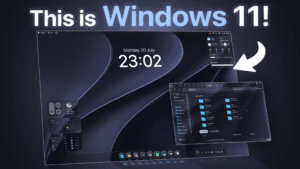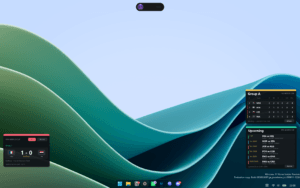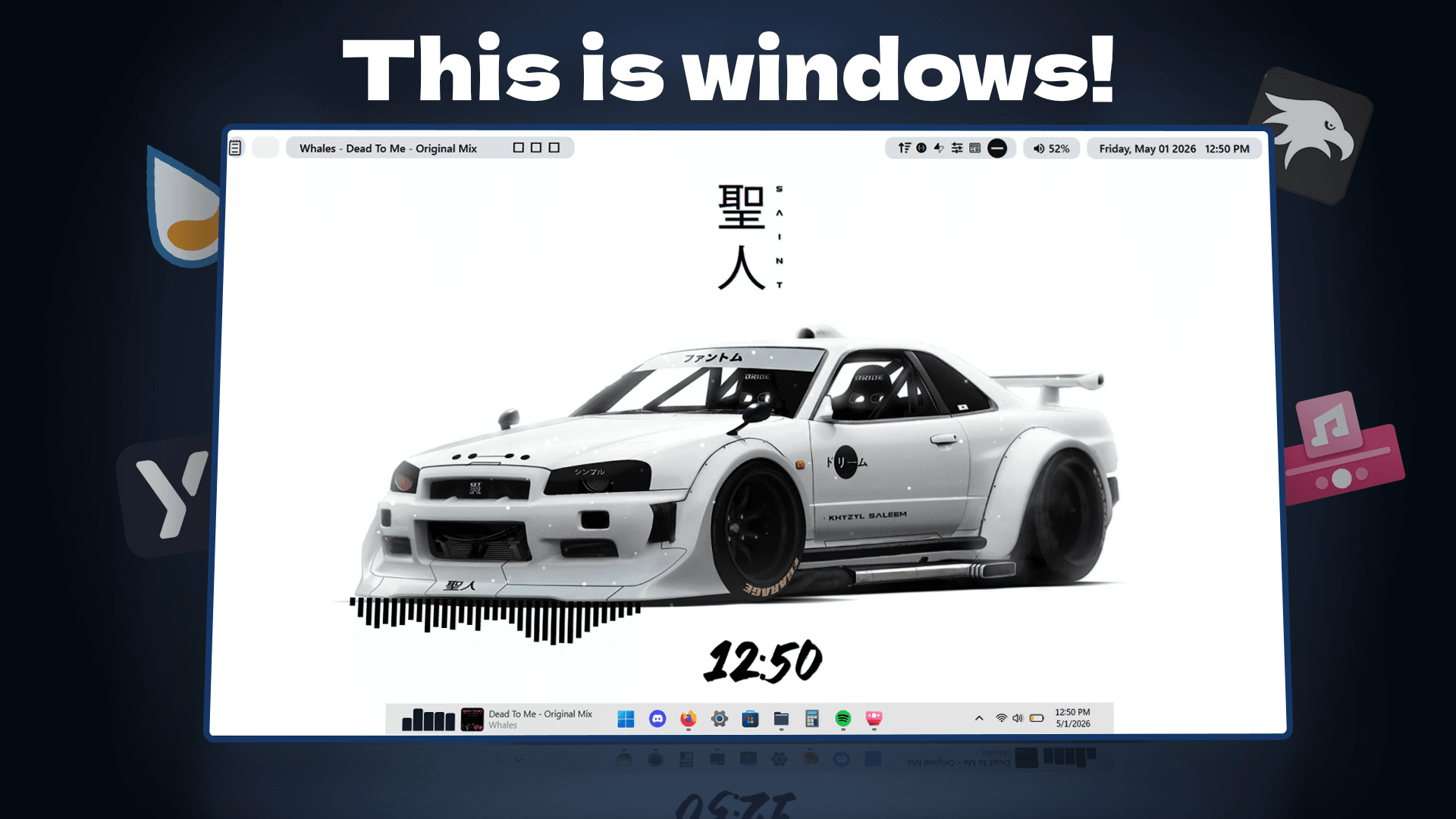
If you’re tired of generic desktops and anime wallpapers, this is the kind of setup I’ve been building for myself lately. It’s a car‑themed Windows setup that looks almost illegal, but still runs smoothly and feels completely personal.
Why I Started This Setup
I wanted something that actually looked like me instead of a boring default Windows install. So I jumped into Wallpaper Engine to hunt for a wallpaper that matched the vibe I was going for. After scrolling through way too many weird and questionable wallpapers and questioning my life choices along the way, I finally found the “holy grail” one that fits this whole build.
🔗 Wallpaper Engine: GTR Nissan R34
For everyone who doesn’t want to pay, there’s a free alternative using Lively Wallpaper and a matching YouTube video.
🔗 Lively Wallpaper: https://apps.microsoft.com/detail/9ntm2qc6qws7?hl=en-gb&gl=DE
🔗 Wallpaper video link: https://www.youtube.com/watch?v=MuxLuYSasw8&t=1016s
The wallpaper is the first thing you see, so it has to pull the whole setup together—not just look flashy for a few seconds.
Cleaning Up with Windhawk
Windhawk is my absolute must‑have for every Windows setup I put together these days. I install it from my own site and then head straight into the mods.
🔗 Windhawk download page: https://windhawk.net
These are the three mods I use:
- Taskbar Styler: I search for “Taskbar Styler”, install it, then select the Dock‑like theme to make the taskbar fit the car aesthetic.
- Start Menu Styler: I switch to “Search Only”, which removes almost all visual clutter and keeps the Start menu super minimal.
- Notification Styler: I apply the Tinted Glass style so even notifications feel part of the overall look.
After these tweaks, the desktop already feels way cleaner and more intentional, even though most of the functionality stays the same.
Adding My Rainmeter Visualizer
The visual highlight for me is the Rainmeter visualizer that sits right under the car in the wallpaper. I install Rainmeter from the official site.
🔗 Rainmeter download: https://www.rainmeter.net
Then I remove the default skins (they’re honestly ugly) and install a special visualizer skin that I link on my website.
🔗 Visualizer skin download: https://www.deviantart.com/alatsombath/art/Fountain-of-Colors-desktop-music-visualizer-518894563
Inside the skin settings, I tweak:
- General: Height to 110, and angle to as close to 178–179 as it’ll let me.
- Visualizer settings: Bar count set to 36.
- Styling: Color changed to black so it blends with the car.
Finally, I drag the visualizer under the front of the car so that when the music plays, it bounces with the beat and makes the whole desktop feel alive.
Matching the Browser and Music Controls
I also tweak my browser so it fits the same car theme. In Chrome, I install a Nissan Skyline R34 Live Wallpaper theme from the Chrome Web Store.
🔗 Chrome theme: Nissan Skyline R34 Live Wallpaper
For music, I use FluentFlyouts, which adds a flyout that lets me control playback directly from the taskbar instead of opening another app.
🔗 FluentFlyouts download: https://fluentflyout.com/download/
After installing the .exe, I install the included security certificate (it’s safe, I’ve been using it for half a year with no issues), then enable the visualizer inside the app settings. I keep it subtle, though, because the rest of the setup is already loud enough visually.
Finishing Things Off with YASB
The last piece of the puzzle is YASB (Yet Another Status Bar), which gives me a clean top bar at the top of the screen.
🔗 YASB download / website: https://github.com/amnweb/yasb/wiki/Installation
Before installing the app itself, I install the recommended fonts from the site.
Then I install YASB, open the theme menu, and click on open config.
Paste these files in there:
Now the desktop has a slick top bar, a car‑themed wallpaper, a clean taskbar, and a music visualizer that actually matches the mood of the whole system.
Performance and How It Feels in Daily Use
Despite all the visuals, this setup only uses around 300 MB of RAM and less than 3% CPUaccording to my own tests. I really like how much you can achieve with just a few carefully chosen tools instead of a full‑on system overhaul.
If you want a setup that feels like it was “cooked” instead of thrown together, this is the kind of build I’d recommend starting from.