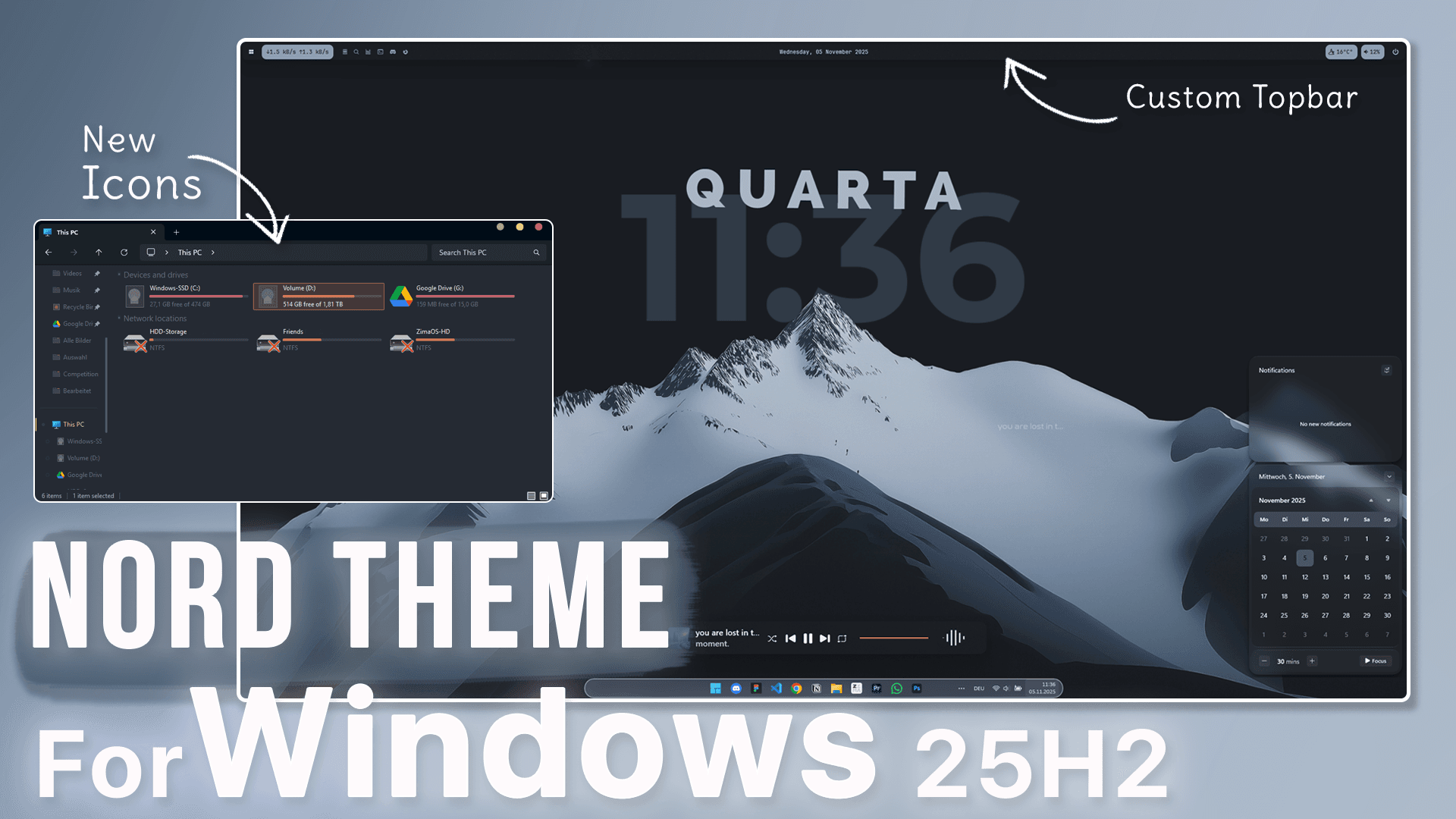
If you want a minimal, modern, and productivity-focused Windows look, this Nord-themed setup is one of the cleanest designs you can build right now — combining subtle blur, frosted transparency, soft blue tones, and functional widgets without hurting performance.
This guide walks you through every part:
top bar → taskbar + menus → wallpaper → widgets → theme + icons → performance results
🎛️ Top Bar – YASB
We start with the element that instantly makes your desktop look professional and useful: the top status bar.
For this, we use YASB, a modular bar that supports custom widgets, animations, and themes.
I designed a custom Nord preset that perfectly matches the rest of the setup, including blur and soft gradients.
Once installed, you can enable widgets like:
- Network speed
- Weather
- Performance stats
- Music controls
- Battery
- Volume
Everything sits neatly in a single bar, saving space and reducing clutter on the desktop.
Despite offering live modules, it stays lightweight at under ~25MB RAM usage.
🖥️ Taskbar & Menus – Windhawk
Even though the new Windows 25H2 update improved some visuals, the default taskbar and start menu still feel flat and basic.
With Windhawk, you can install UI tweaks like:
- Transparent taskbar
- Frosted blur
- Modernized start menu
- Translucent quick settings + notifications
For this setup, we apply Taskbar Styler combined with my Nord code to achieve a soft glass effect and black-and-white dock layout that matches the bar above.
Windhawk is extremely light, using less than 1% CPU and ~10MB RAM.
🖼️ Wallpaper – Static or Live
Next, we bring visual cohesion using a minimal Nord mountain artwork that includes a built-in clock overlay.
You can either:
- use it as a static background, or
- apply Wallpaper Engine / Lively for animated subtle movement
The Nord palette here helps create a calm work environment, perfect for productivity, gaming, or editing.
Average impact stays around:
GPU: 1–2% | CPU: <2% (idle)
🎵 Media Widget – Square Player
To finish the desktop layer, we add one clean widget:
Square Player – a small frosted glass-style music player built with Rainmeter.
It shows:
- Track title
- Progress bar
- Play controls
- Cover art
You can position it anywhere on the screen to match your layout.
🎨 Theme & Icons
The last step is applying a full Nord matching icon and system theme so the entire OS follows the same look — not just the desktop.
We use a premium-quality DRK-25 Nord UI theme together with matching icon packs, applied via Windhawk’s UXTheme Hook + Resource Redirect.
This changes:
- File Explorer
- Folder icons
- Dialog windows
- Buttons & toggles
No additional resource usage after applied — it’s purely visual.
⚙️ Performance
This build is perfectly usable on mid-range hardware, even laptops.
| Feature | Idle CPU | RAM Usage |
|---|---|---|
| YASB | <1% | ~25MB |
| Windhawk | <1% | ~10MB |
| Wallpaper Engine | 1–2% | ~200MB |
| Rainmeter | <1% | ~80MB |
System stayed below 2% CPU total increase while recording.
Follow us on YouTube (@Unknown Tech) for video tutorials, tips, and full walkthroughs for every step.
Have questions or want the code/snippets used in this video? Join our Discord or check out the Downloads section below!
📺 Want to see it in action? Watch the full video on YouTube.
🔗 Downloads
📥 Download Custom Code!- Yasb
- Windhawk
- Wallpaper Engine – Minimalist mountain
- Rainmerter
- Square Player Media Widget
- Icons + Theme
Don´t want to miss out on new customization tools and setups?
Subscribe to our newsletter and stay ahead in the world of Windows customization! From the latest tools to our favorite setup ideas, you’ll never miss a chance to enhance your desktop experience again!
Disclaimer for Source Code / Tutorials
The code examples and tutorials are provided for educational purposes only. Use at your own risk. I do not accept any liability for damages resulting from the use of this code.