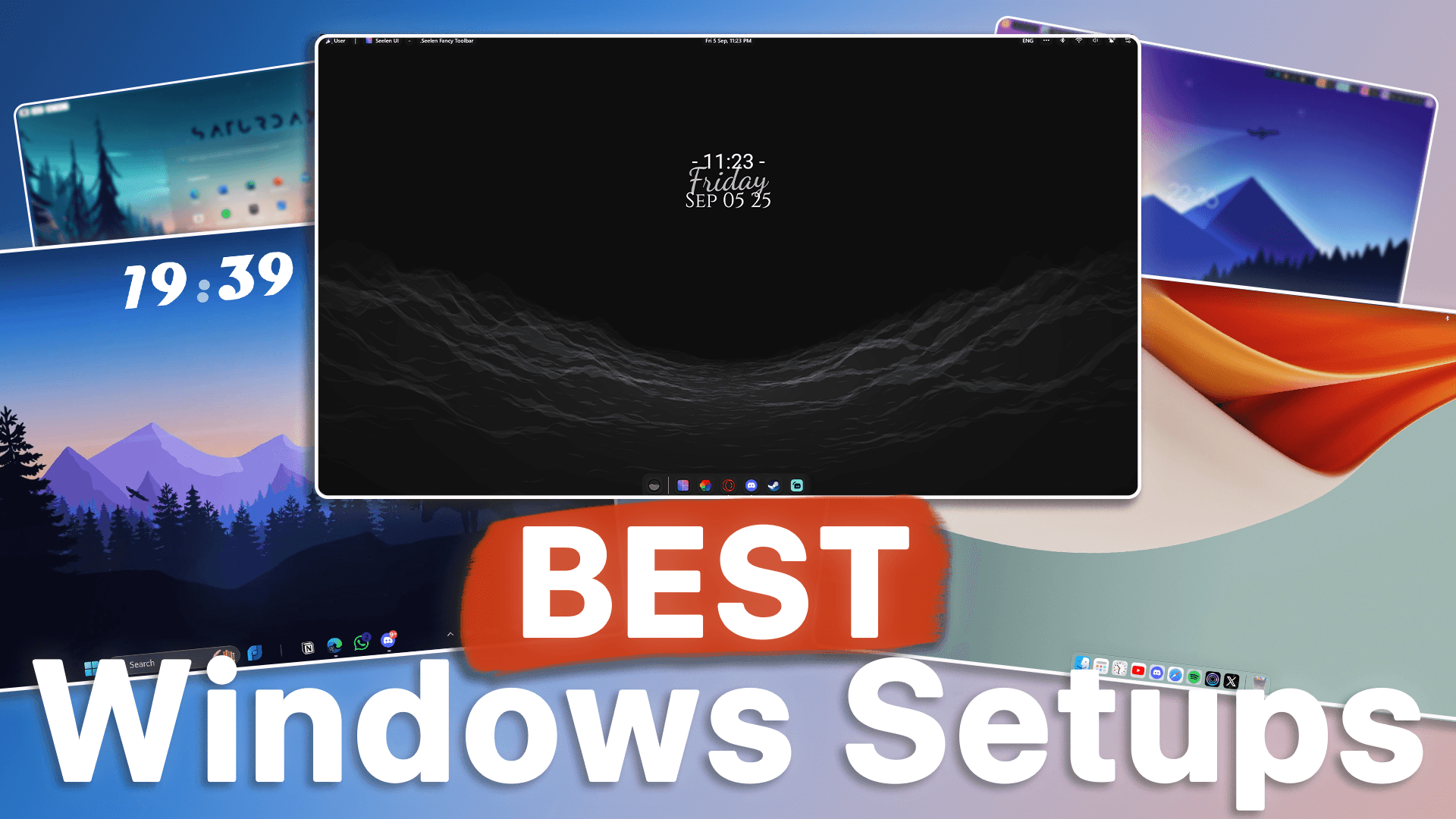
Choosing the perfect Windows customization style can be overwhelming — there are thousands of wallpapers, themes, tools, widgets, docks, and UI mods.
So instead of guessing, we asked our community to vote for their favorite real-world setups.
After hundreds of submissions and votes, these 3 builds ranked highest — based on:
✔ Aesthetic appeal
✔ Usability & workflow
✔ Performance & stability
✔ Uniqueness
Each setup includes wallpapers, tools, UI tweaks, widgets, and productivity add-ons, plus full installation steps.
Let’s begin!
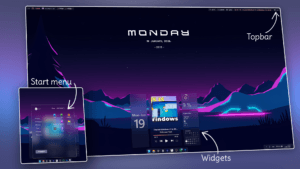
🥉 3rd Place – Minimal Colorful Mountain Desktop (by Thunder4814)
A lightweight, vibrant, and productivity-ready design featuring:
- A colorful minimal mountain wallpaper
- A translucent taskbar, start menu & notifications
- A floating minimal clock
- A fast productivity launcher
📌 Step 1 — Wallpaper
- Open the linked wallpaper website
- Select the correct resolution
- Right-click → Open in new tab → Save image
- Right-click image → Set as desktop background
📌 Step 2 — UI Transparency (using Windhawk)
Install Windhawk → search & install each module:
| Module | Setting | Result |
|---|---|---|
| Taskbar Styler | Simply Transparent | Floating translucent taskbar |
| Start Menu Styler | Down Arrow Style | Cleaner minimal menu |
| Notification Styler | Transparent Style | Modern notification center |
📌 Step 3 — Floating Clock Widget (via V-Widgets)
- Install VWidgets
- Select Clock Widget
- Open Customize → Appearance
- Set Opacity → 0
- Font size: 120
- Font type: Magneto (install separately if missing)
Resize until no edges are cut off.
📌 Step 4 — Add Productivity (Flow Launcher)
- Install Flow Launcher
- Enable Run on Startup
- In Plugins → enable Everything Search
- Install Everything when prompted
Shortcut: Alt + Space
🥈 2nd Place – Modern macOS-Inspired Glass Desktop (by Smile)
A more advanced, animated, Apple-style desktop using:
- A minimal abstract wallpaper
- A premium dock & top bar
- macOS-style clock
- Full system theme + blur
⚠ Uses more performance due to dock & effects
📌 Step 1 — Wallpaper
Same method: download → right-click → Set as background
📌 Step 2 — Dock + Top Bar (using MyDockFinder)
Purchased through Steam
After installation:
- Open Explorer → Hide Taskbar
- Open Dock Settings → Appearance
- Enable Custom Blur
- Set values around 10
- Set icon scaling: Size 100 / Scale 120
- Change to Tahoe Icons in workshop
Disable preview bubbles:
Settings → Minimize → Enable “Minimize to Dock”
📌 Step 3 — Apple-Style Modular Clock (Rainmeter + JaxCore)
If antivirus blocks install → temporarily pause
Install JaxCore → Modular Clock → Apple Style
Adjust widget size under Style Options
📌 Step 4 — macOS-like Theme + Blur
Install from Windhawk:
- UXTheme Hook → install
- Download Night Owl Theme
- Paste theme files into:
C:\Windows\Resources\Themes\ - Select via Settings → Personalization → Themes
For translucent Explorer:
ExplorerBlurMicah → Download → Extract → Run script
🥇 1st Place – Aesthetic Animated Glass Setup (by Miscellaneous)
Clean, animated, modern — and completely free!
Uses:
- Lively live wallpaper
- Glass dock + top bar via Seelen UI
- Optional widgets
📌 Step 1 — Animated Wallpaper
Install Lively Wallpaper
Select the shown theme from library
📌 Step 2 — Glass Dock + Top Bar (Seelen UI)
- Install via Microsoft Store
- Open settings
- Install theme using linked preset
- Activate under Resources → Themes:
- Glass Dock Style
- Bubbles Top Bar
📌 Optional: Glass Widgets (New Widgets)
Choose:
- Calendar
- Monitor
- Weather
Change accent color → white
📊 Performance Comparison
| Rank | Setup | Performance | Notes |
|---|---|---|---|
| 🥉 #3 | Minimal Colorful | ⭐⭐⭐⭐⭐ | Most lightweight |
| 🥈 #2 | Mac-Inspired | ⭐⭐⭐ | Heaviest due to dock |
| 🥇 #1 | Animated Glass | ⭐⭐⭐⭐ | Medium load, still smooth |
🎯 Final Thoughts
Each setup provides a unique style and different workflow advantages:
- Prefer speed & clarity? → Choose Setup #3
- Want premium macOS-like feel? → Setup #2
- Want modern animated aesthetic? → Setup #1
You can also mix features to customize your perfect build
📦 Download Center
🥉 3rd Place Setup – Minimal Colorful Desktop
🥈 2nd Place Setup – macOS-Inspired Glass Desktop
🥇 1st Place Setup – Animated Minimal Glass Desktop
Follow us on YouTube (@Unknown Tech) for video tutorials, tips, and full walkthroughs for every step.
Have questions or want the code/snippets used in this video? Join our Discord or check out the Downloads section below!
📺 Want to see it in action? Watch the full video on YouTube.
Don´t want to miss out on new customization tools and setups?
Subscribe to our newsletter and stay ahead in the world of Windows customization! From the latest tools to our favorite setup ideas, you’ll never miss a chance to enhance your desktop experience again!
Disclaimer for Source Code / Tutorials
The code examples and tutorials are provided for educational purposes only. Use at your own risk. I do not accept any liability for damages resulting from the use of this code.