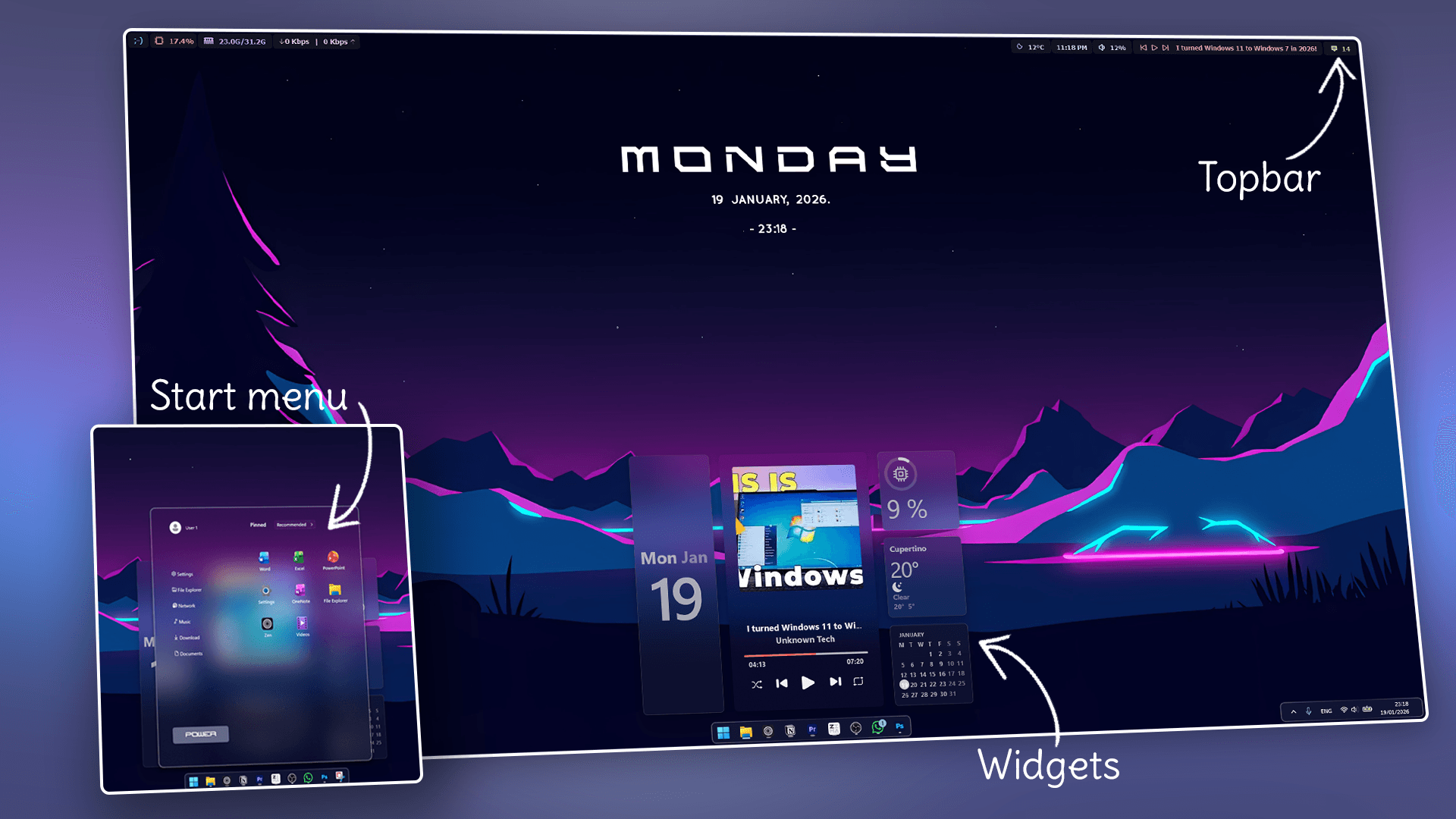
Windows 11 has been around for years, but the interface has remained largely flat and unchanged. Why not modernize it for 2026? With just five powerful tools, you can upgrade your desktop experience — from a sleek, transparent taskbar and modern Start menu to futuristic widgets, a new top bar, and even a media control center.
This guide breaks down each step, explains what tools are used, why they are needed, and how to achieve a fully modernized Windows 11 desktop.
Section 1: The Foundation – A Clean Canvas
Before implementing any advanced customizations, start with a clean desktop:
- Hide desktop icons: Right-click the desktop → View → Uncheck Show desktop icons.
- Set a futuristic wallpaper: Download the cyberpunk-style wallpaper from the linked Google Drive. Right-click the downloaded file → Set as desktop background.
This simple step immediately creates a focused and modern foundation for the new interface.
Section 2: The Architectural Mod – Windhawk
What
Windhawk is a runtime customization platform that allows deep UI modifications through modular extensions. It handles:
- Taskbar styling
- Start menu redesign
- Notification transparency
- File Explorer modernization
- Icon replacement
Why
Windows 11’s default UI is flat, and many key elements (taskbar, Start menu, notifications) cannot be modernized without this tool.
How
- Download and install Windhawk from the official website.
- Use the Explore tab to search and install the following mods:
- Taskbar Styler: Apply custom code from the downloadable folder to get the modern dock.
- Start Menu Styler: Apply code for the redesigned menu and install the required modern font.
- Notification Styler: Select the Glass style in settings for translucent notifications.
- Explorer Styler: Select Matter style for a modern File Explorer interface.
- Resource Redirect: Set the icon theme to Spaceshrooms Blue.
These mods collectively overhaul the visual structure and functionality of Windows 11’s core UI.
Section 3: Explorer Blur Mica
What
Adds transparency and blur effects to File Explorer windows.
Why
Completes the modern, futuristic aesthetic by giving depth and visual hierarchy.
How
- Download Explorer Blur Mica from GitHub releases.
- Extract the ZIP to a dedicated folder.
- Run the installation file to activate the blur and transparency.
Section 4: YASB – The Productivity Top Bar
What
YASB adds a top bar displaying system information such as CPU/RAM usage, download speeds, and weather.
Why
Enhances usability and productivity while maintaining the modern aesthetic.
How
- Install required fonts from the GitHub folder.
- Download and install YASB MSI from releases.
- Open the app from the system tray → select the Neos theme.
Section 5: Rainmeter – Futuristic Widgets
What
Rainmeter allows placement of advanced widgets on the desktop, such as a media center and a futuristic clock.
Why
Adds interactive, visually engaging elements to the desktop.
How
- Install Rainmeter from rainmeter.net.
- Install the Mond skin for the futuristic clock. Remove unnecessary elements.
- Set the font to Steelar in the clock skin’s configuration.
- Install Square Media Player skin for media controls. Use Rainmeter’s manage panel to load the correct style file (S2).
Section 6: uWidgets – Blurry Calendar, Weather, and Performance
What
Adds modern widgets for calendar, weather, and system monitoring.
How
- Download uWidgets from GitHub releases.
- Extract to a custom folder and run the EXE.
- In settings, set accent color to white.
- Enable the following widgets:
- Calendar
- Monitor
- Weather
- Arrange the widgets around the media player and clock for a cohesive layout.
Conclusion
By following this guide, your Windows 11 desktop now features:
- Sleek, transparent interfaces
- A functional and visually engaging top bar
- Modernized File Explorer with blur effects
- Interactive widgets for productivity and aesthetics
This setup transforms Windows 11 into a futuristic 2026-ready desktop without touching system files.
For help with mods or to discuss setups with other customizers, join our Discord community. Support the project by liking and subscribing to the channel for more setup guides.
📦 Download Center
📥 Download Custom Code!Follow us on YouTube (@Unknown Tech) for video tutorials, tips, and full walkthroughs for every step.
Have questions or want the code/snippets used in this video? Join our Discord or check out the Downloads section below!
📺 Want to see it in action? Watch the full video on YouTube.
Don´t want to miss out on new customization tools and setups?
Subscribe to our newsletter and stay ahead in the world of Windows customization! From the latest tools to our favorite setup ideas, you’ll never miss a chance to enhance your desktop experience again!
Disclaimer for Source Code / Tutorials
The code examples and tutorials are provided for educational purposes only. Use at your own risk. I do not accept any liability for damages resulting from the use of this code.