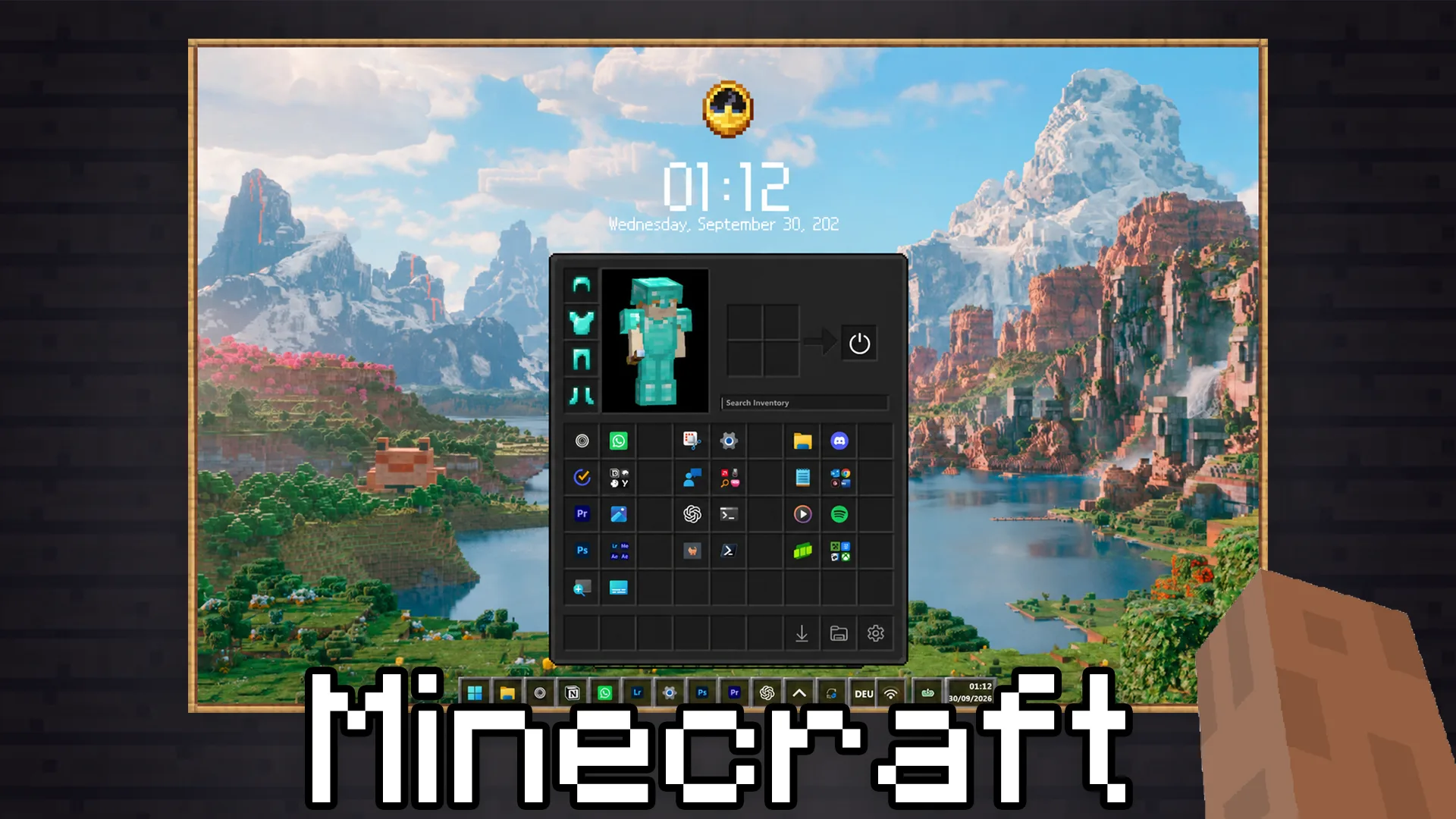
Turn your Windows desktop into Minecraft with a custom hotbar, inventory-style Start Menu, animated cursors, Minecraft HUD, and even a completely redesigned lock screen!
In this guide, you’ll find all the downloads, tools, and configurations you need to recreate the setup from our video.
Minecraft Lock Screen Code
This is the custom configuration used to transform the Windows lock screen into a Minecraft-inspired interface, complete with a pixel-style clock, weather, and media controls.
Copy the code below and paste it into your custom Windhawk Lock Screen Styler mod.
Show full code ⌄
theme: Left Aligned
disableNewStartMenuLayout: ''
styleConstants:
  - ''
controlStyles:
  - target: StackPanel#TimeAndDatePanel
    styles:
      - Orientation=Vertical
      - VerticalAlignment=Bottom
      - HorizontalAlignment=Left
      - Margin=48,0,32,64
  - target: StackPanel#TimePanel
    styles:
      - HorizontalAlignment=Left
      - Margin=0
      - Padding=0
  - target: StackPanel#TimePanel > TextBlock#Time
    styles:
      - FontSize=72
      - FontFamily=Minecraftia
      - FontWeight=Normal
      - CharacterSpacing=0
      - Foreground=#E7FFE5
      - HorizontalAlignment=Left
      - VerticalAlignment=Center
      - TextAlignment=Left
      - Margin=0
      - Padding=0
  - target: StackPanel#TimeAndDatePanel > TextBlock#Date
    styles:
      - FontSize=20
      - FontFamily=Minecraftia
      - FontWeight=Normal
      - CharacterSpacing=-40
      - Foreground=#C5E3C5
      - HorizontalAlignment=Left
      - TextAlignment=Left
      - Margin=0,8,0,0
      - Padding=0
      - TextWrapping=Wrap
  - target: Grid#NetworkAndBatteryIcon > Border
    styles:
      - Background:=<WindhawkBlur BlurAmount="25" TintColor="#70202B24"/>
      - BorderBrush=#40C5E3C5
      - BorderThickness=1
      - CornerRadius=16
      - Padding=14,10,14,10
  - target: Grid#MediaTransportControls
    styles:
      - Background:=<WindhawkBlur BlurAmount="25" TintColor="#90202B24"/>
      - BorderBrush=#50C5E3C5
      - BorderThickness=1
      - CornerRadius=20
      - Width=400
      - Height=Auto
      - MinWidth=0
      - MinHeight=0
      - Padding=12,16,12,16
      - Margin=0,16,0,0
  - target: Grid#MediaControlsContainer
    styles:
      - MinWidth=0
  - target: Grid#MediaTransportControls > StackPanel
    styles:
      - VerticalAlignment=Center
      - Margin=0
      - Padding=0
  - target: Grid#MediaTransportControls > StackPanel > TextBlock
    styles:
      - FontFamily=Minecraftia
      - FontWeight=Normal
      - CharacterSpacing=0
      - TextAlignment=Left
      - Height=Auto
      - Padding=0,4,0,4
  - target: Grid#MediaTransportControls > StackPanel > TextBlock[1]
    styles:
      - FontSize=13
      - Foreground=#E7FFE5
      - TextWrapping=Wrap
      - MaxLines=2
      - TextTrimming=CharacterEllipsis
      - Margin=0
  - target: Grid#MediaTransportControls > StackPanel > TextBlock[2]
    styles:
      - FontSize=11
      - Foreground=#C5E3C5
      - Margin=0,2,0,0
      - TextWrapping=NoWrap
      - TextTrimming=CharacterEllipsis
  - target: Button#PlayPauseButton
    styles:
      - Width=36
      - Height=36
  - target: Windows.UI.Xaml.Controls.Primitives.RepeatButton#PreviousButton
    styles:
      - Width=36
      - Height=36
  - target: Windows.UI.Xaml.Controls.Primitives.RepeatButton#NextButton
    styles:
      - Width=36
      - Height=36
  - target: Grid#WidgetFrameGrid
    styles:
      - Background:=<WindhawkBlur BlurAmount="25" TintColor="#90202B24"/>
      - BorderBrush=#50C5E3C5
      - BorderThickness=1
      - CornerRadius=20
  - target: ContentPresenter#WidgetContent
    styles:
      - Background=Transparent
  - target: Border#WidgetBorder
    styles:
      - BorderThickness=0
  - target: StackPanel#WidgetGroupPanel > ContentPresenter > LockCanvas.LockCanvasWidgetFrame > Grid > Border
    styles:
      - BorderThickness=0
  - target: StackPanel#DefaultTitleStackPanel > TextBlock
    styles:
      - FontFamily=Minecraftia
      - FontSize=16
      - FontWeight=Normal
      - CharacterSpacing=0
      - Foreground=#E7FFE5
themeResourceVariables:
  - ''
webContentStyles:
  - target: ''
    styles:
      - ''
webContentCustomJs: ''
Copy the entire configuration and paste it into Windhawk’s Textual Mode.
Important: You must first fork the Windhawk Start Menu Styler mod, rename it to Lockscreen Styler, compile it, and add LockApp.exe to the inclusion list under Advanced. Then enable the additional options shown in the video and paste the code in Textual Mode.
You’ll also need the Minecraftia Font installed for the correct appearance.
The customization only works after Windhawk has started.
1. Minecraft Wallpapers
Every good Minecraft setup needs a fitting background.
We used two wallpapers from the official Minecraft collection, including a classic landscape wallpaper and a more immersive in-game scene.
Download your favorite image, extract it if necessary, and set it as your Windows desktop background.
2. Minecraft Cursors
Replace your regular Windows cursor with an animated Minecraft sword or mace!
Downloads:
For individual cursors, open Mouse Settings → Additional mouse settings → Pointers, select a pointer and browse for the downloaded .ani file.
For the complete cursor pack, install the included cursor scheme and select it in the Windows pointer settings.
3. Minecraft Hotbar, Inventory & Icons
This is where the real transformation happens!
Using Windhawk, we can customize the Windows interface to look almost exactly like Minecraft.
Mods used:
- Taskbar Styler: Replaces the standard Windows taskbar with a Minecraft hotbar.
- Start Menu Styler: Adds a Minecraft inventory-style Start Menu using custom theme code.
- Resource Redirect: Adds Minecraft-inspired File Explorer icons, including our panda icons.
- Notification Center Styler (optional): Makes the notification panel fit the rest of the setup a little better.
Simply install the mods through Windhawk, select the Minecraft presets or apply the custom theme configurations shown in the video.
Special thanks to WasiXGamer from our Discord community for creating the Minecraft taskbar, inventory Start Menu, and icon themes!
4. Minecraft HUD – Hearts, Hunger & XP
Now let’s bring the Minecraft HUD onto the desktop!
Using Rainmeter and DMeloper’s Block HUD, we can add the familiar hearts, hunger bar, XP bar, and even a Minecraft-style clock.
Downloads:
The best part? The HUD isn’t purely decorative. The hearts can indicate available CPU capacity, the hunger bar shows available RAM, and the XP bar represents storage usage.
After installing the skin, enable the Draggable setting for the indicators so you can arrange everything around your hotbar. You can also unload the Rainmeter hotbar since we’re already using the Windhawk version.
And don’t forget to check out the little music box!
5. Minecraft Music Visualizer
To add some movement to the setup, we used the Fountain of Colors Rainmeter visualizer.
Its block-like bars fit surprisingly well with Minecraft’s pixelated style.
Install the skin, adjust the bar size, and set the title rotation to 0° if needed.
That’s Your Minecraft Desktop!
With the wallpaper, hotbar, inventory, custom icons, HUD, and lock screen all in place, Windows now looks a whole lot more like Minecraft.
If you haven’t already, watch our full video tutorial for a step-by-step walkthrough of the entire setup.
And if you’ve discovered other cool Minecraft customizations, share them on our Unknown Tech Discord community!
Stay tuned for the next Unknown Tech find!