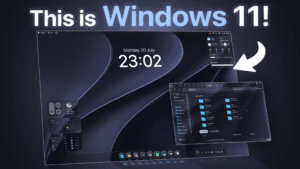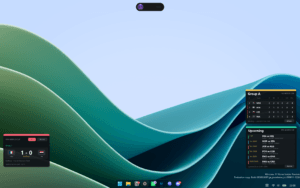
Minimalism is not about removing features — it’s about removing distractions.
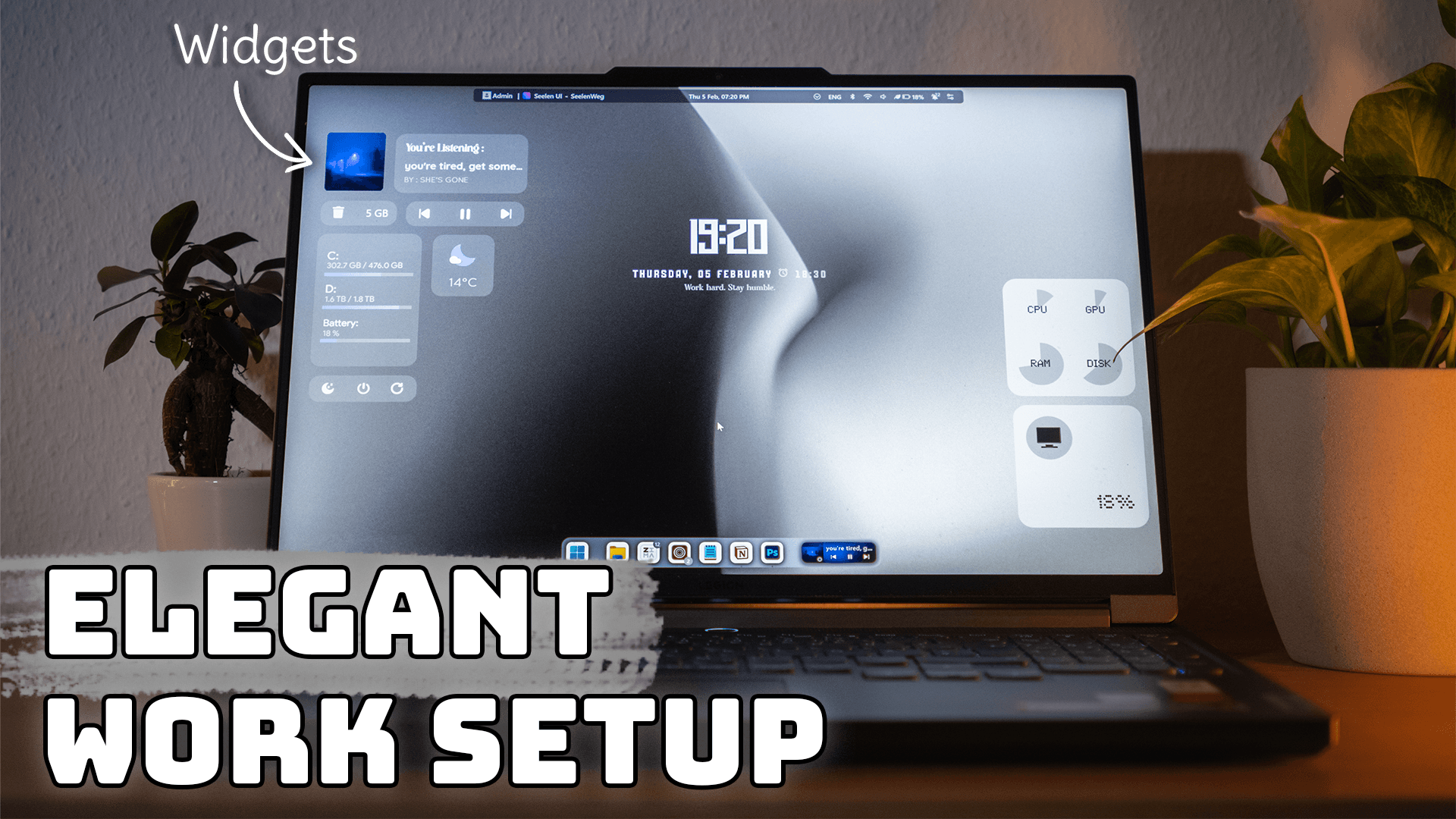
This monochrome Windows setup is designed to create a focused, calm, and highly productive workspace by eliminating visual noise and emphasizing clarity.
In this guide, you’ll learn exactly how to recreate the complete setup shown in the video — step by step.
The Concept — Why Black & White?
Color is stimulating. Too much of it becomes distracting.
A monochrome environment:
- Reduces visual fatigue
- Improves focus and flow
- Creates a calm workspace
- Keeps attention on content, not interface
This setup is built around clarity, structure, and subtle motion — nothing unnecessary.
Download the Custom Wallpaper
This setup is built around a custom-designed black & white wallpaper created specifically for clean contrast and minimal distraction.
Wallpaper Download
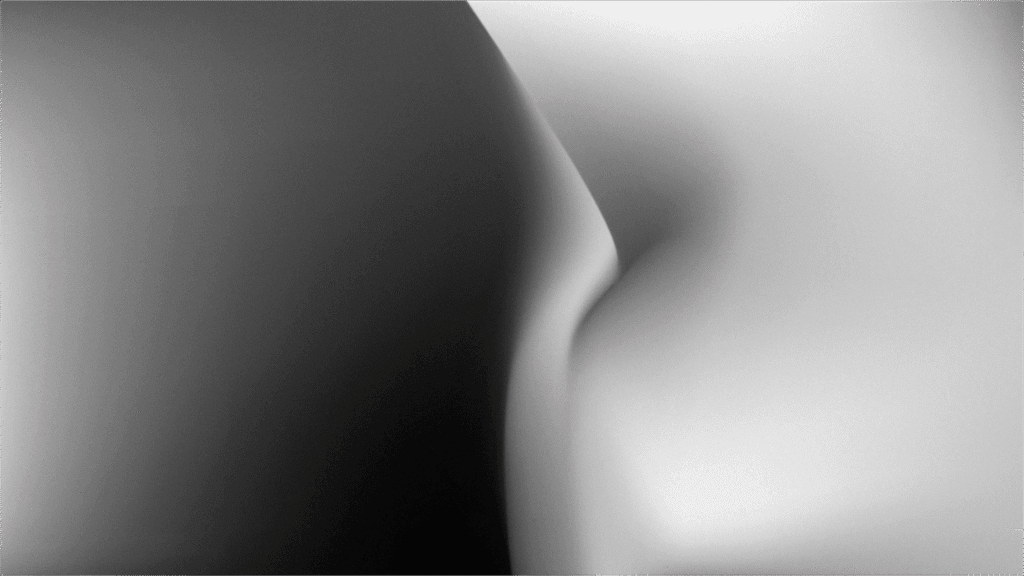
Download here:
👉 Download Custom Monochrome Wallpaper
After downloading:
- Set it as your desktop background
- Hide desktop icons (optional, recommended)
- Enable dark mode in Windows
You now have the perfect minimal foundation.
Rainmeter — Clock & Core Visual Element
Rainmeter provides the visual anchor of the setup.
Required Skins
- Stellar Clock
- NotWidgets
- Lampo Clock
What it Adds
- Clean monochrome clock centerpiece
- Subtle visual structure
- Motion without distraction
Position the clock centrally or slightly offset for balance.
Seelen — Dock & Toolbar
Seelen provides structure and fast navigation.
Configuration
- Skin: Round Toolbar
- Dock Style: Material Dock
This creates a modern, clean dock that integrates naturally into the monochrome design while keeping frequently used apps accessible.
Windhawk — Start Menu & Icon Refinement
Windhawk refines Windows’ native UI to match the theme.
Apply
- Start Menu: Down Aero
- Icons: Arc neutral Grey
This removes visual inconsistencies and keeps the entire system unified.
Explorer Blur Mica — Depth & Transparency
Minimal doesn’t mean flat.
Explorer Blur Mica introduces:
- Subtle transparency
- Soft blur effects
- Layered visual depth
This enhances the interface without breaking the clean aesthetic.
Zen Browser — A Focused Web Experience
Your browser should match your workspace.
Use Zen Browser with:
Sine Theme
Combined with Arc styling, this creates:
- A distraction-free browsing environment
- Consistent monochrome visuals
- A calm reading and working experience
The Final Result
After applying everything, you get:
- A clean black & white workspace
- Minimal visual noise
- Structured navigation
- Functional widgets without clutter
- A focused, unified system
This setup is not about looks alone — it’s designed to improve focus, clarity, and productivity.
For help with mods or to discuss setups with other customizers, join our Discord community. Support the project by liking and subscribing to the channel for more setup guides.
📦 Download Center
📥 Download Custom Background!- Wallpaper
- Rainmeter
- Stellar widgets
- NotWidgets
- Lampo clock
- Seleen UI
- Windhawk
- Explorer Blur Mica
- Zen Browser
- Sine Mod
Follow us on YouTube (@Unknown Tech) for video tutorials, tips, and full walkthroughs for every step.
Have questions or want the code/snippets used in this video? Join our Discord or check out the Downloads section below!
📺 Want to see it in action? Watch the full video on YouTube.
Don´t want to miss out on new customization tools and setups?
Subscribe to our newsletter and stay ahead in the world of Windows customization! From the latest tools to our favorite setup ideas, you’ll never miss a chance to enhance your desktop experience again!
Disclaimer for Source Code / Tutorials
The code examples and tutorials are provided for educational purposes only. Use at your own risk. I do not accept any liability for damages resulting from the use of this code.