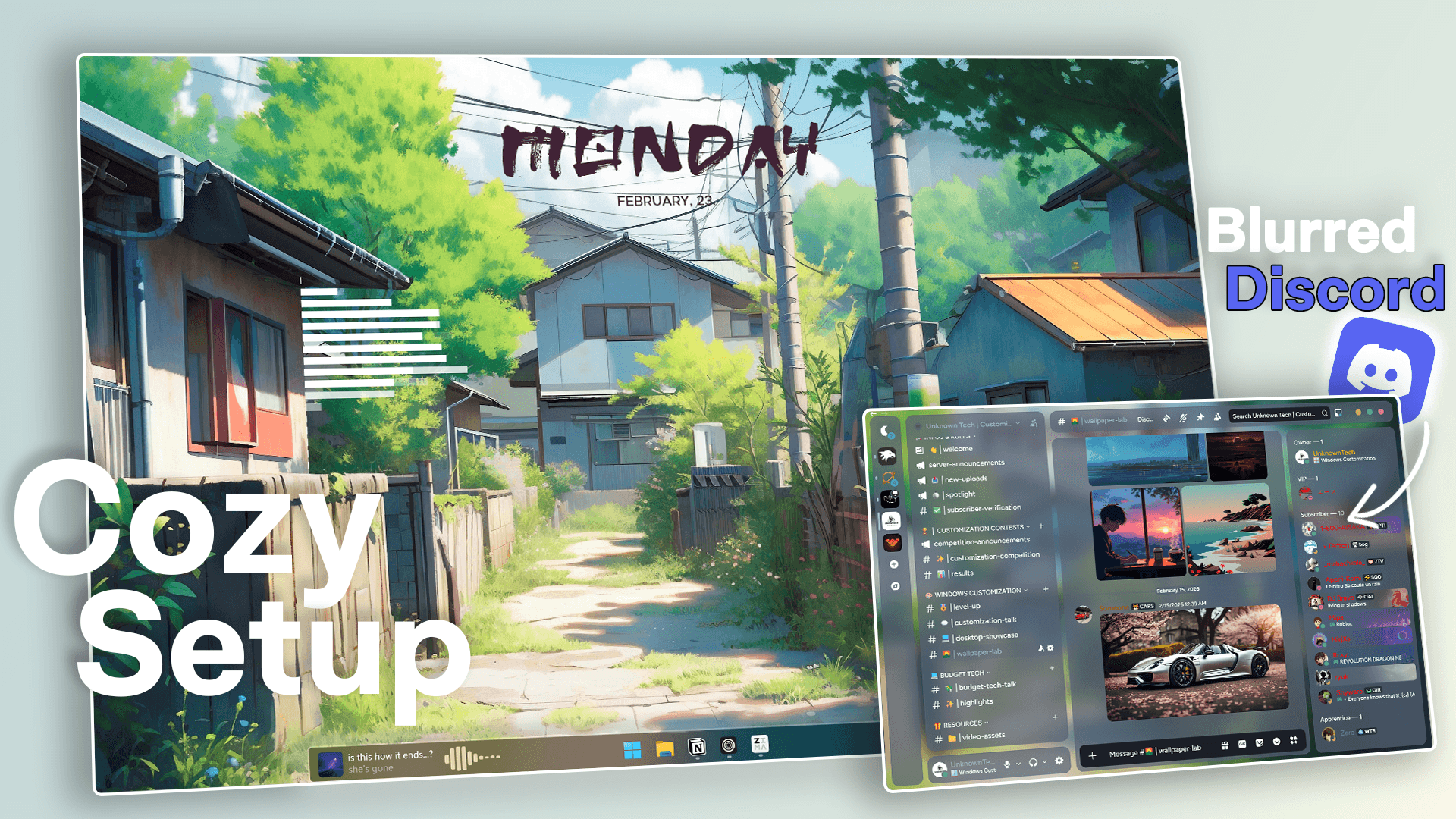
In this setup, we’re transforming your entire Windows system into a calm, Japanese-inspired lofi aesthetic — complete with wallpaper, widgets, blur effects, and fully customized apps.
Here’s the step-by-step breakdown.
1️⃣ Wallpaper – The Foundation
Everything starts with a strong base.
Download the Japanese neighborhood wallpaper from Freepik in the highest resolution.
Right-click the image → Set as desktop background.
Simple change. Massive impact.
Download: Wallpaper
2️⃣ Rainmeter – Widgets & Visualizer
Rainmeter allows us to add clean widgets and bring the desktop to life.
🔹 Japanese Date Widget
- Install Rainmeter
- Download the skin
- Install the included fonts (very important)
- Copy the “Date” folder into your Rainmeter skins directory
- Load the skin and place it at the top center
Now your desktop already feels structured and aesthetic.
Download: Rainmeter date widget
🔹 Rotated Music Visualizer
- Install the visualizer skin
- Set Bar Count to 18
- Set Rotation to 270°
- Position it along the wall of the house in the wallpaper
When music starts playing, it looks like the visualizer is part of the image. Super clean.
Download: Rainmeter visualizer widget
3️⃣ Discord – Transparency + Blur Effect
Now we modernize Discord.
Using Vencord, we enable custom themes and transparency. (Note both themes are just edited versions of the Midnight and Discord Mica mod)
Download: Vencord
Steps:
- Install Vencord
- Move both theme files into the Themes folder
- Activate them in Discord
- Enable Windows Transparency
To add blur:
Download: Mica for everyone
- Install Mica for Everyone
- Create a new rule for “Discord”
- Set Backdrop to Mica
- Set Corners to Rounded
Result: A modern, transparent Discord perfectly blending into your wallpaper.
4️⃣ Windhawk – Taskbar, Start Menu & Notifications
Time to upgrade Windows itself.
Download: Windhawk
🔹 Start Menu
- Install Windows 11 Start Menu Styler
- Select the Down Aero theme
🔹 Taskbar
- Install Taskbar Styler
- Paste in the custom code from our website
Custom code taskbar
{"controlStyles[0].target":"Taskbar.TaskbarFrame#TaskbarFrame","controlStyles[0].styles[1]":"HorizontalAlignment=Center","controlStyles[0].styles[2]":"Width=Auto","controlStyles[1].target":"Taskbar.TaskbarFrame#TaskbarFrame > Grid#RootGrid","controlStyles[1].styles[0]":"Padding=0,0,0,0","controlStyles[1].styles[1]":"Margin=0,0,0,0","controlStyles[1].styles[2]":"BorderThickness=2","controlStyles[1].styles[3]":"Background:=<AcrylicBrush TintColor=\"{ThemeResource CardStrokeColorDefaultSolid}\" FallbackColor=\"{ThemeResource CardStrokeColorDefaultSolid}\" TintOpacity=\"0\" TintLuminosityOpacity=\".5\" Opacity=\"1\"/>","controlStyles[2].target":"Rectangle#BackgroundFill","controlStyles[2].styles[0]":"Visibility=Collapsed","controlStyles[3].target":"Rectangle#BackgroundStroke","controlStyles[3].styles[0]":"Visibility=Collapsed","controlStyles[4].target":"Taskbar.AugmentedEntryPointButton#AugmentedEntryPointButton > Taskbar.TaskListButtonPanel#ExperienceToggleButtonRootPanel","controlStyles[4].styles[0]":"Margin=0","controlStyles[5].target":"Grid#SystemTrayFrameGrid","controlStyles[5].styles[0]":"Background:=#00000000","controlStyles[5].styles[1]":"CornerRadius=5","controlStyles[5].styles[2]":"BackgroundSizing=InnerBorderEdge","controlStyles[5].styles[3]":"Margin=0,2,0,3","controlStyles[5].styles[4]":"BorderThickness=5","controlStyles[6].target":"SystemTray.ChevronIconView","controlStyles[6].styles[0]":"Padding=0","controlStyles[7].target":"SystemTray.NotifyIconView#NotifyItemIcon","controlStyles[7].styles[0]":"Padding=0","controlStyles[8].target":"SystemTray.OmniButton","controlStyles[8].styles[0]":"Padding=0","controlStyles[9].target":"SystemTray.CopilotIcon","controlStyles[9].styles[0]":"Padding=0","controlStyles[10].target":"SystemTray.OmniButton#NotificationCenterButton > Grid > ContentPresenter > ItemsPresenter > StackPanel > ContentPresenter > systemtray:IconView#SystemTrayIcon > Grid","controlStyles[10].styles[0]":"Padding=4,0,4,0","controlStyles[11].target":"SystemTray.IconView#SystemTrayIcon > Grid#ContainerGrid > ContentPresenter#ContentPresenter > Grid#ContentGrid > SystemTray.TextIconContent > Grid#ContainerGrid","controlStyles[11].styles[0]":"Padding=0","controlStyles[12].target":"SystemTray.StackListView#IconStack > ItemsPresenter > StackPanel > ContentPresenter > SystemTray.IconView#SystemTrayIcon","controlStyles[12].styles[0]":"Padding=0","controlStyles[13].target":"SystemTray.Stack#ShowDesktopStack","controlStyles[13].styles[0]":"Margin=0,-4,-12,-4","controlStyles[14].target":"Taskbar.Gripper#GripperControl","controlStyles[14].styles[0]":"Width=Auto","controlStyles[14].styles[1]":"MinWidth=24","controlStyles[15].target":"SystemTray.SystemTrayFrame","controlStyles[15].styles[0]":"HorizontalAlignment=1","controlStyles[1].styles[4]":"CornerRadius=5","controlStyles[1].styles[5]":"Background:=<AcrylicBrush TintColor=\"{ThemeResource CardStrokeColorDefaultSolid}\" FallbackColor=\"{ThemeResource CardStrokeColorDefaultSolid}\" TintOpacity=\"0\" TintLuminosityOpacity=\".55\" Opacity=\"1\"/>","controlStyles[1].styles[6]":"BorderBrush=#70FFFFFF","controlStyles[0].styles[0]":"MaxWidth=1050","controlStyles[0].styles[3]":"MinWidth=1050","controlStyles[15].styles[1]":"Margin=800,0,0,0"}🔹 Notification Center
- Install Notification Styler
- Choose the Window Glass theme
Now everything matches perfectly.
5️⃣ Spotify – Lofi Aesthetic
Important: Spotify must be installed from the official website (not the Microsoft Store).
Using Spicetify:
Download: Spicetify
- Install the “Hazy” theme
- Set the Blue value to 0
You can even insert your own wallpaper links to fully customize it.
6️⃣ Fluent Flyouts – Clean Music Controls
This taskbar music widget integrates perfectly:
- Download from GitHub (not Microsoft Store)
- Install the certificate
- Install the MSIX bundle
- Enable the music flyout
Now you always have elegant music controls directly in your taskbar.
7️⃣ Chrome – Anime Japanese Theme
Finally, match your browser:
- Open Chrome
- Go to Extensions → Themes
- Search for “Japanese neighbourhood anime”
- Install it
Now literally every part of your system fits the aesthetic.
🎯 Final Result
This setup combines:
- Cozy Japanese wallpaper
- Minimal widgets
- Rotated music visualizer
- Blurred Discord
- Translucent taskbar
- Custom Spotify
- Anime Chrome theme
One of the cleanest setups we’ve ever built.
If you enjoy these customization guides, check out Unknown Tech for more — and join our Discord if you need help setting it up.
For help with mods or to discuss setups with other customizers, join our Discord community. Support the project by liking and subscribing to the channel for more setup guides.
📦 Download Center
- Wallpaper
- Rainmeter
- Clock widget
- Visualizer
- Vencord
- Discord Mica Mod
- Mica for everyone
- Windhawk
- Spicetify
- Fluent Flyouts
Follow us on YouTube (@Unknown Tech) for video tutorials, tips, and full walkthroughs for every step.
Have questions or want the code/snippets used in this video? Join our Discord or check out the Downloads section below!
📺 Want to see it in action? Watch the full video on YouTube.
Don´t want to miss out on new customization tools and setups?
Subscribe to our newsletter and stay ahead in the world of Windows customization! From the latest tools to our favorite setup ideas, you’ll never miss a chance to enhance your desktop experience again!
Disclaimer for Source Code / Tutorials
The code examples and tutorials are provided for educational purposes only. Use at your own risk. I do not accept any liability for damages resulting from the use of this code.