Let’s be honest: being productive on Windows has always felt… a bit scuffed.
Compared to tools like Raycast on macOS or even custom Linux setups, Windows has been missing key features like a proper command launcher or a clean top bar. Because of that, the community stepped in with tools like Flow Launcher and custom bars like YASB.
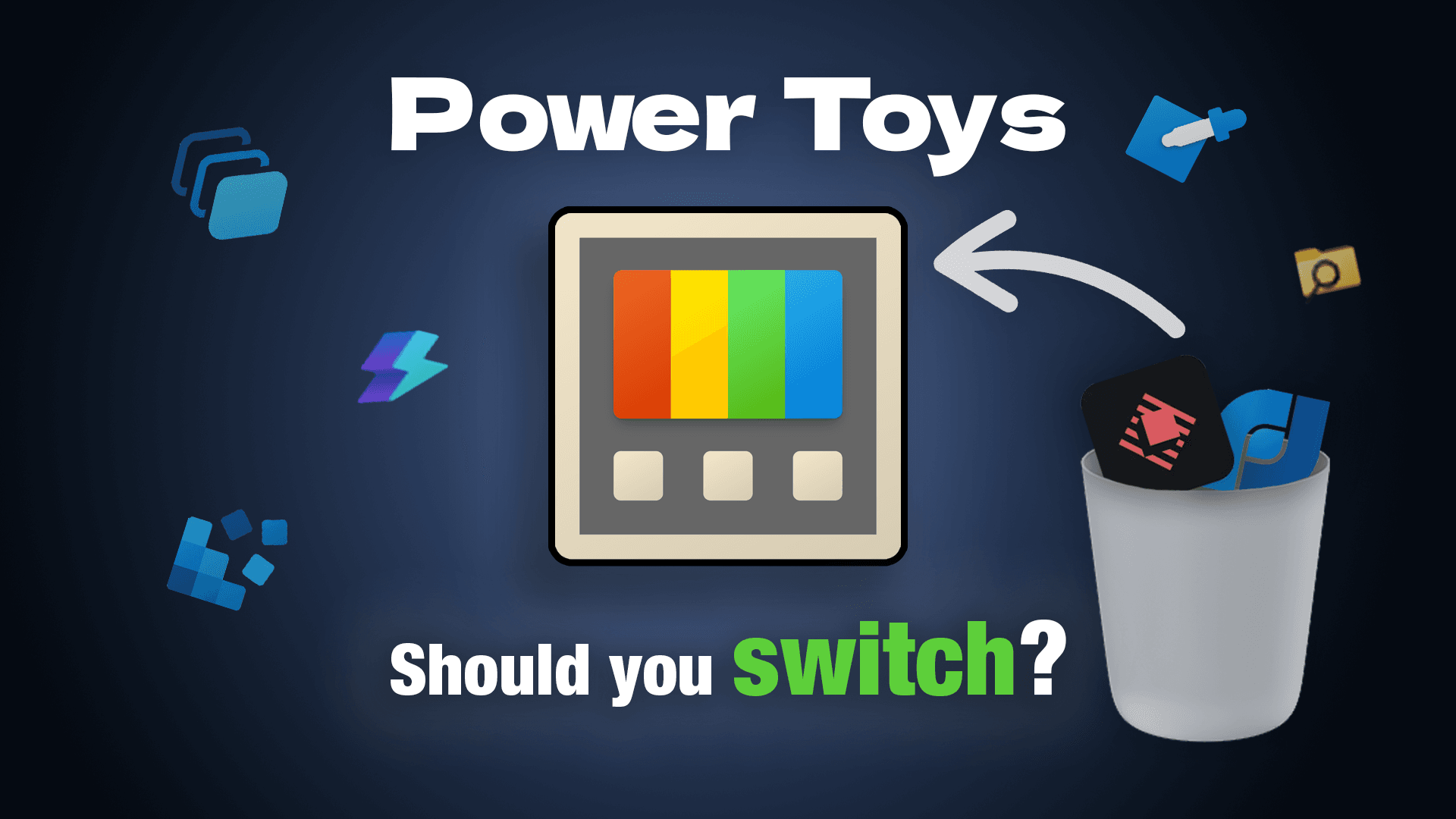
But now Microsoft is finally catching up with a major update to Microsoft PowerToys—and surprisingly, it’s actually good.
In this guide, we’ll break down:
- The new Command Palette
- The Top Bar (Dock)
- Some of the most useful built-in features
- And how it compares to existing tools
🔥 Best PowerToys Features You Should Use
👀 Peek — Instant File Preview
Peek lets you preview files instantly using a shortcut (default: spacebar).
Why it’s useful:
- Quickly scan images or files without opening them
- Perfect for creators managing lots of assets
🧩 FancyZones — Advanced Window Layouts
FancyZones allows you to create custom layouts for your apps.
Key features:
- Grid-based layouts (recommended)
- Drag windows into zones using
Shift - Fully customizable layouts
👉 This alone can completely change how you multitask on Windows.
🎨 Color Picker
Press a shortcut and instantly grab color codes from anywhere on your screen.
Use cases:
- Design work
- UI development
- Content creation
You can even configure multiple color formats in the settings.
📌 Always on Top
Pin any window above others with a shortcut.
Example:
- Watch a video while taking notes
- Keep tools visible while working
👉 No more accidentally closing your window when you just wanted to pause something—we’ve all been there.
🧠 Workspaces
This is one of the most underrated features.
What it does:
- Saves your current app layout
- Lets you relaunch everything instantly
👉 Perfect for recurring workflows like editing, coding, or studying.
🧩 The New Top Bar (Dock)
One of the biggest additions is the new Top Bar, enabled through the Command Palette settings.
What it offers:
- System stats (CPU, GPU, RAM, network)
- App shortcuts
- Quick access tools
Customization:
- Position (top, side, bottom)
- Transparency
- Basic layout tweaks
⚠️ Limitations
Compared to tools like YASB or Rainmeter setups:
- Very limited customization
- Minimal layout control
- Basic visual options
👉 Conclusion:
It’s functional—but not customizable enough (yet).
🧠 Command Palette — The Core Feature
The Command Palette is the heart of the new PowerToys experience.
Open it with:
Win + Alt + Space
🔍 What it can do
- Launch apps
- Search files
- Run commands
- Perform calculations
- Start web searches
⚡ Key Commands
- App search → clean app launching
- Calculator → quick math
- Browser search → instant web queries
- System commands → advanced usage
⚠️ Weaknesses
The biggest issue is file search.
Compared to:
- Flow Launcher (with Everything plugin)
- Raycast
…it’s noticeably slower and less reliable.
🔌 Extensions
PowerToys supports extensions via:
- Microsoft Store
- Winget
Most are fairly basic—but there are some interesting ones like a YouTube downloader plugin.
Still, it’s nowhere near the ecosystem of Raycast or Flow Launcher.
⚔️ PowerToys vs Raycast vs Flow Launcher
🟦 PowerToys
Strengths:
- Native Windows integration
- Easy to use
- Includes multiple tools in one
Weaknesses:
- Limited customization
- Weak extensions
- Average file search
🟪 Flow Launcher
Strengths:
- Extremely customizable
- Huge plugin ecosystem
- Fast file search
Weaknesses:
- Less polished UI
- More setup required
🟧 Raycast
Strengths:
- Best overall feature set
- Deep integrations (AI, apps, workflows)
- Clean UX
Weaknesses:
- Overkill for basic users
🧠 Final Verdict
PowerToys doesn’t “destroy” tools like Raycast or Flow Launcher—but it doesn’t need to.
Instead, it offers:
- A clean, simple experience
- A native Windows solution
- Enough features for most users
👉 If you just want:
- A launcher
- A top bar
- Some productivity tools
PowerToys is now one of the easiest ways to upgrade your workflow.
🚀 Final Thoughts
Microsoft is clearly moving in the right direction.
PowerToys is no longer just a collection of small utilities—it’s becoming a real productivity layer for Windows.
And if development continues at this pace, it might soon replace third-party tools for a lot of users.